Getting Obsidian Off iCloud: Self-Hosted, Encrypted Sync with Cloudflare R2
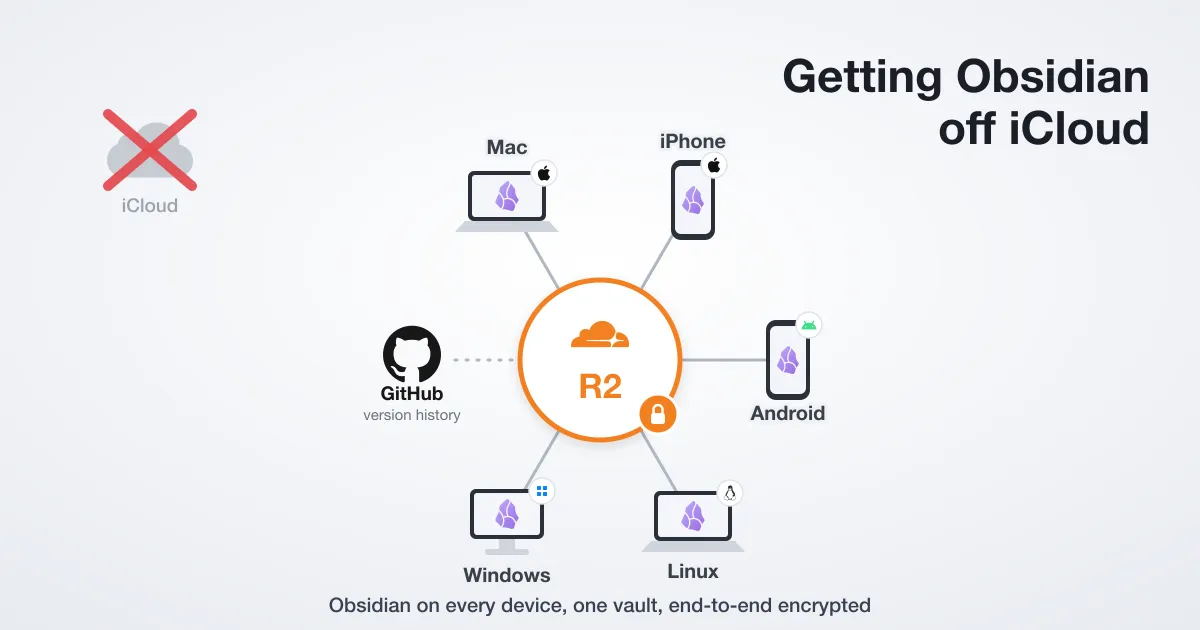
I keep one Obsidian vault and I want it on every machine I use: a personal Mac, a work Mac, Windows machines, and my iPhone. For a couple of years the vault lived in iCloud Drive, because that is the path of least resistance on Apple hardware: drop the folder in iCloud, point Obsidian at it, done.
It worked until it didn’t, and it failed in three separate ways before I finally pulled it out. This post is the story of those failures, the diagnosis of the one that actually hurt, and the replacement I run now: the vault on local disk, synced through a private Cloudflare R2 bucket with end-to-end encryption, with Git kept around as a version-history safety net. The second half is a step-by-step guide so you can build the same setup.
The old setup, and why it was tempting
The arrangement was simple:
- The vault folder lived in
iCloud Drive/iCloud~md~obsidian/Documents/My Vault. - macOS synced it to iCloud automatically, so both the personal and the work Mac saw it.
- On iOS, Obsidian has a first-class “store in iCloud” option, so the phone read the same vault.
One folder, no extra tooling, no accounts to wire up. Across Apple devices it is genuinely fine. There are two problems with it, though. iCloud is doing two jobs at once here, storing the files and syncing them between devices, and it is not actually good at either for this particular workload. And it only ever covered the Apple devices in the first place; Windows was never really in the picture.
Three ways it broke
1. No single tool covered Windows and the phone
Windows is part of my workflow, but it never made it into the vault setup. iCloud is effortless on Apple hardware and a separate thing to wire up on Windows, and honestly that bit of friction was enough: it was easier to just not use Windows for notes than to set it up. So Windows quietly fell out of the picture.
Git is the obvious cross-platform alternative: commit the vault to a repository and pull it everywhere. That would cover the Macs and Windows cleanly, and the obsidian-git plugin automates it on the desktop. But Git sync falls apart on the iPhone, there is no real native Git on iOS, and the plugin’s mobile support is unreliable on a vault of any real size. So Git-only sync would solve Windows but lose the phone, the exact inverse of iCloud, which covered the phone but never reached Windows. No single option covered Mac, Windows, and iPhone at once.
2. The work laptop cut off personal iCloud
The bigger break was administrative, not technical. My employer, reasonably, stopped allowing personal iCloud accounts to sign in on managed work laptops. The moment that policy landed, the work machine could no longer reach the vault at all. The sync mechanism and the storage location were the same thing, so losing iCloud on one device meant losing the notes on that device entirely. There was no “just point at the files” fallback, because the files only existed inside iCloud.
That is the structural problem with using a sync-as-storage service: your access to your own data is gated on a third party that someone else controls.
3. The performance cliff that finally did it
The trigger was performance. Obsidian started taking 30 to 60 seconds to open, stuck on “Loading plugins,” and the only fix was to quit and relaunch until it came up fast. It looked like a heavy plugin, but the “Show debug info” breakdown showed the real issue: community plugins accounted for 50 of the 51 seconds, and even a few-kilobyte plugin took over 3 seconds to load. Code does not run slowly in proportion to nothing, so this was slow file reads, not slow code.
The numbers point straight at the cause. Those plugins are roughly 30 MB of JavaScript, and a local SSD reads 30 MB in well under 100 milliseconds, not 50 seconds. That is a network round-trip per file. The vault lived in iCloud Drive with “Optimize Mac Storage” on, which evicts the contents of idle files to the cloud and leaves a placeholder, so Obsidian re-downloaded each main.js on demand at every cold start.
Disabling “Optimize Mac Storage” makes startup fast again, but it does nothing about Windows or the work laptop, and it leaves storage and sync welded together. I wanted to fix the design, not patch one symptom.
The fix: separate storage from sync
The core idea is to stop making one tool do both jobs:
- Storage becomes a plain local folder on each device. Local files are never evicted, so startup is instant and access never depends on a cloud account being allowed to sign in.
- Sync becomes a tool built for syncing, the Remotely Save Obsidian plugin, talking to a private object store, Cloudflare R2.
                       Cloudflare R2
                    bucket: obsidian-vault
                   (encrypted file blobs)
                        ^             ^
          Remotely Save |             | Remotely Save
           (push/pull)  |             |  (push/pull)
                        v             v
          +----------------+    +------------------+
          |  Mac / PC      |    |  iPhone          |
          |  local vault   |    |  local vault     |
          +----------------+    +------------------+
                 |
                 | Git (desktop only)
                 v
              GitHub  (full version history)
R2 is a hub; every device is a spoke. No device talks directly to another. A device saves a note locally (instant), and Remotely Save pushes the change up to R2 on a timer or on app open/close; other devices pull it on their next sync. It is not the invisible always-on propagation iCloud gives you, but it is explicit, reliable, cross-platform, and it never evicts anything.
Two design choices worth calling out:
- End-to-end encryption is on. Remotely Save encrypts every file, contents and filename, before upload. R2 only ever holds ciphertext. Even the object keys are scrambled, so the bucket reveals neither what your notes say nor what they are called.
- Git stays, for a different job. I keep the obsidian-git plugin on the desktop committing to a private GitHub repo. Remotely Save gives me “latest state, everywhere”; Git gives me “every version, over time.” They are complementary, not redundant. Git on mobile is painful, which is the whole reason I am not using it for the cross-device sync.
Why R2 specifically
Cloudflare R2 is S3-compatible object storage with no egress fees and a generous free tier; a personal notes vault costs effectively nothing. It speaks the S3 API, which Remotely Save supports directly, and Cloudflare places the bucket near you automatically. Any S3-compatible store works here (Backblaze B2, a self-hosted MinIO, plain AWS S3); R2 is just a good default if you are already on Cloudflare.
Build it
This is the full setup. It assumes you already have an Obsidian vault somewhere (in iCloud or otherwise) and a Cloudflare account.
1. Move the vault to local disk
Get the vault out of any cloud-synced folder and onto plain local storage, for example ~/notes. If it is currently in iCloud, materialize every file first (so you copy real content, not dataless placeholders), then copy it out:
SRC="$HOME/Library/Mobile Documents/iCloud~md~obsidian/Documents/My Vault"
DST="$HOME/notes"

# force iCloud to download every evicted file before copying
brctl download "$SRC"
find "$SRC" -type f -print0 | xargs -0 -P4 -I{} cat {} > /dev/null

# copy out, preserving metadata; ditto materializes anything still dataless
ditto "$SRC" "$DST"
Then in Obsidian, “Open folder as vault” and pick ~/notes. Keep the iCloud copy untouched as a backup until everything below is verified. Time the next launch: with the files local, the 50-second startup is gone.
2. Create the R2 bucket
With Wrangler installed and authenticated:
wrangler r2 bucket create obsidian-vaultLeave it private. Remotely Save is the only thing that reads or writes it. Cloudflare auto-places the bucket near where you create it; you can verify with wrangler r2 bucket info obsidian-vault (mine reported location: WEUR).
3. Create the S3 API token
Remotely Save authenticates with S3-style credentials, an Access Key ID and a Secret Access Key. Wrangler cannot mint those, so create them in the dashboard: R2 -> API -> Manage API Tokens -> Create Account API Token.
- Permission: Object Read & Write
- Scope: Apply to specific buckets only ->
obsidian-vault(least privilege) - TTL: as you like
The result page shows the values once. Worth understanding how they relate, because it explains why you store more than one thing:
- Access Key ID is the token’s ID.
- Secret Access Key is the SHA-256 of the token’s value.
- The page also shows your S3 endpoint,
https://<ACCOUNT_ID>.r2.cloudflarestorage.com.
Copy the Access Key ID, the Secret Access Key, and the endpoint into your password manager now; the secret is not shown again.
4. Configure Remotely Save on the desktop
Install the Remotely Save community plugin, choose the S3 backend, and fill in:
| Field | Value |
|---|---|
| Endpoint | https://<ACCOUNT_ID>.r2.cloudflarestorage.com |
| Region | auto |
| Access Key ID | <ACCESS_KEY_ID> |
| Secret Access Key | <SECRET_ACCESS_KEY> |
| Bucket | obsidian-vault |
| S3 URL style | Path-Style |
| End-to-end encryption password | a strong passphrase, saved in your password manager |
Click Check Connectivity. If it passes, run the first Sync (which is a “reload” icon on the left ribbon) which pushes the whole vault up to R2. Do the desktop push before setting up any other device, so R2 has content to pull.
5. Add the iPhone (or any second device)
- Install Obsidian, create a new local vault stored on the device (not the iCloud option), and leave it empty.
- Install Remotely Save and enter the same S3 settings and the same encryption password. If the password differs by even one character, it cannot decrypt anything already in the bucket.
- Sync. The first run pulls everything down.
6. Keep Git for history (optional, desktop)
If you want a versioned safety net on top of live sync, keep obsidian-git committing the vault to a private GitHub repo on your desktop. It is independent of Remotely Save and gives you a full history to roll back through.
Gotchas worth knowing before you hit them
These are the non-obvious parts that cost me time.
Region: autois not a location. The S3 protocol needs a region string to sign requests, but R2 ignores it for routing, so Cloudflare’s documented value is the literalauto(us-east-1works too, it is just a common placeholder). Either way the region field is not where your data lives; that is decided at bucket creation, and with end-to-end encryption on it is ciphertext wherever it sits.- Use Path-Style URLs. Virtual-hosted-style addressing is flaky against R2 from Remotely Save. Path-Style is reliable.
- The first sync trips the safety brake. Remotely Save aborts any run that changes more than a set percentage of files (default 50%), to protect you from a wiped remote deleting your local vault. The first sync changes 100% of files by definition, so it aborts with a message like “491/491=100.0% is going to be modified or deleted.” For that first run, raise “Abort Sync if Modification Above Percentage” to 100 (or set the direction to upload-only so a local delete is impossible), let it complete, then put the threshold back to 50. A second device’s first pull hits the same brake for the same reason.
.obsidianis not synced by default. Remotely Save syncs your notes and skips the config folder, so plugins, themes, and hotkeys do not propagate. That is a deliberate safe default: syncing config across desktop and mobile causes workspace and hotkey conflicts. Either enable “Sync Config Dir” and accept the occasional conflict, or keep per-device config and install the few plugins you want on mobile directly there.- Some plugins are desktop-only and will never run on iOS. Anything with
isDesktopOnly: truein its manifest (Local REST API, file-system explorers, and similar) is skipped by Obsidian mobile regardless of whether the files are present. That is by design, not a sync failure. - The encryption password is the one irreplaceable secret. R2 holds only ciphertext keyed to it. Lose it and the bucket is unreadable. Store it in your password manager, and make sure every device uses the identical string.
Credit and references
This is not based on a single write-up; it is the standard Remotely Save plus S3 pattern, assembled from the project’s own docs and a few references that saved me time. Credit goes first to the Remotely Save project, which does all the actual sync work here, and to obsidian-git for the version-history layer.
- Remotely Save: Cloudflare R2 setup, the source for the Path-Style and region settings.
- Sync Obsidian via S3 with Remotely Save, a clear end-to-end walkthrough of the plugin.
- Remotely Save issue #685, on the “Abort Sync if Modification Above Percentage” setting, and issue #945, the false positive after a vault path change, for the first-sync threshold gotcha.
What you end up with
A notes vault that lives on local disk on every machine, so it opens instantly and never depends on a cloud account being permitted to sign in. Sync runs through a private R2 bucket that holds only end-to-end-encrypted blobs, readable by your devices and no one else, including Cloudflare. It works the same on macOS, Windows, and iOS, because nothing in it is tied to one vendor’s filesystem. Git keeps a full version history on the side. The running cost is effectively zero.
The deeper lesson is the one that made all three failures inevitable: iCloud was doing storage and sync as a single inseparable thing, so a problem with either one took out both. Splitting them, local files for storage, a real sync tool for sync, is what made every one of those failures go away at once.